
OpenRouter API Keys
Create your OpenRouter account, fund credits, optionally connect provider BYOK keys, and configure BrandJoy.
This guide walks through the full setup path from a new OpenRouter account to a working BrandJoy connection.
Before you start
- You need a BrandJoy account.
- You need access to an email for OpenRouter sign-up/login.
- Plan to keep all API keys in a password manager or secret manager.
Step 1: Create (or sign in to) your OpenRouter account
- Go to openrouter.ai.
- Click Get API Key (or sign in from the profile icon).
- Complete account creation/login.
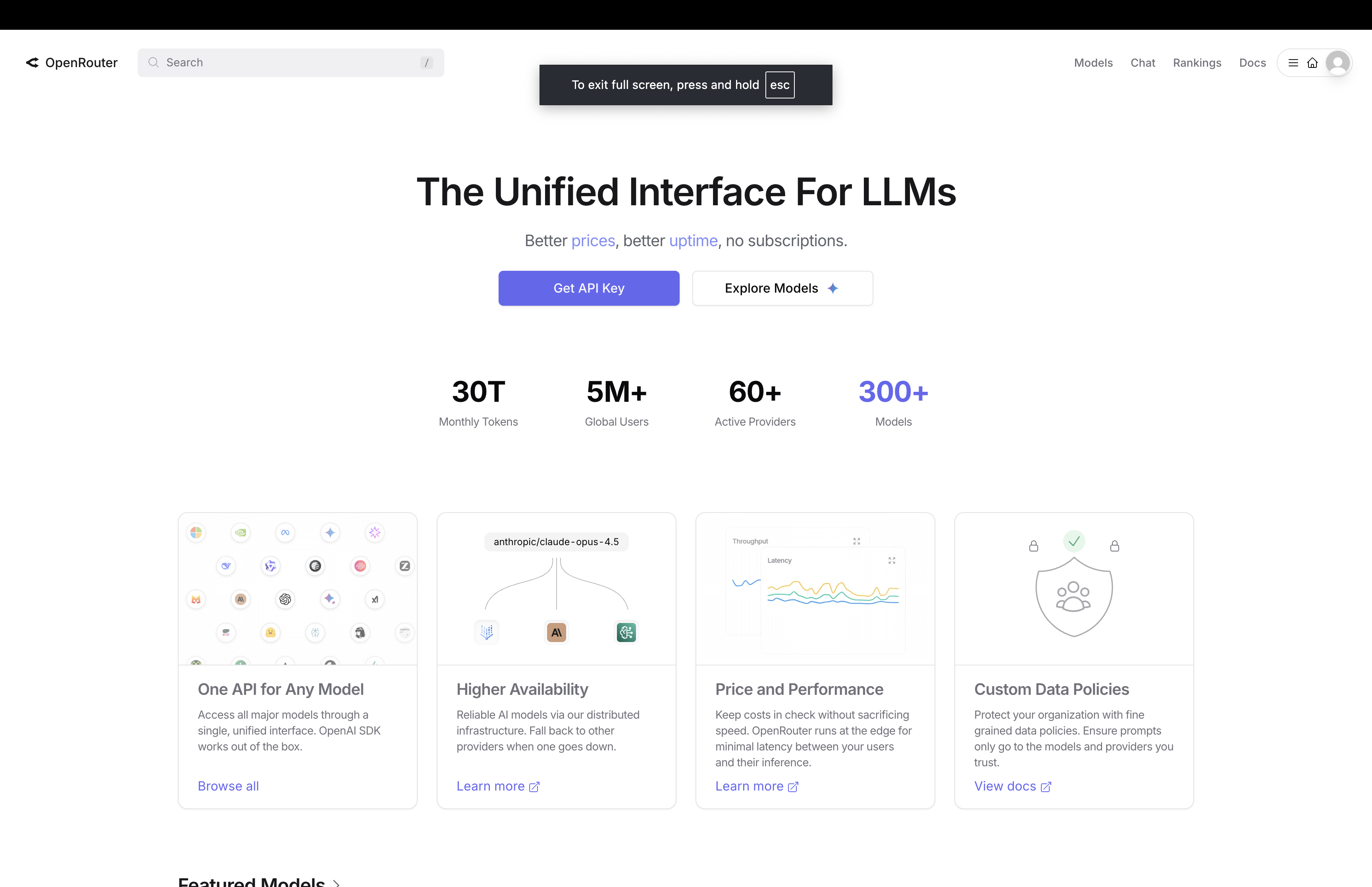
After sign-in, you will land in the OpenRouter dashboard.
Step 2: Add credits so requests can run
- In the left sidebar, open Credits.
- Click Add Credits and complete checkout.
- Optional: enable Auto Top-Up to reduce the risk of failed runs when balance is low.
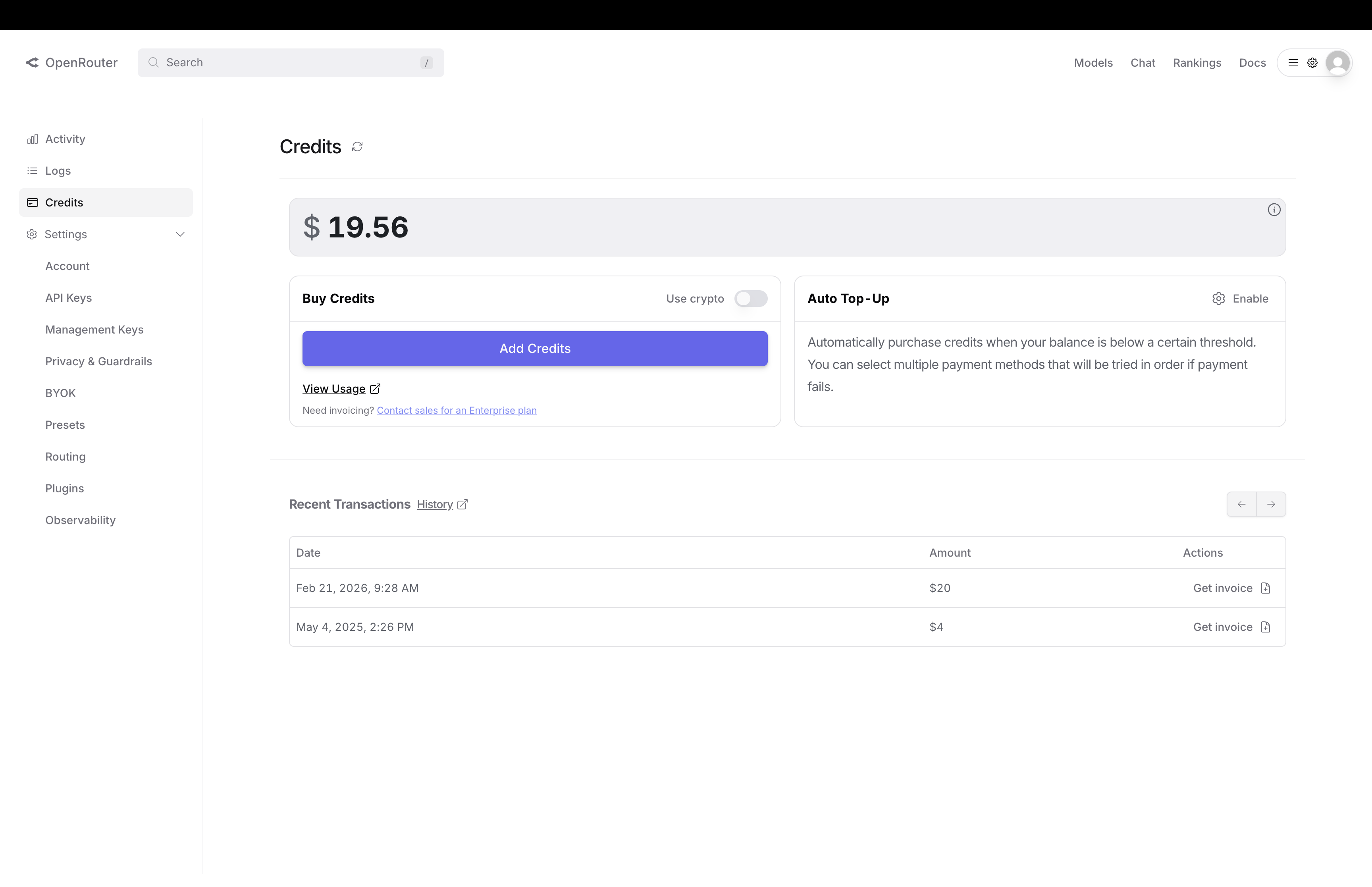
Important: BrandJoy workflow calls need available provider budget. If your OpenRouter balance is 0, requests can fail due to insufficient funds.
Step 3: Open API Keys and create a key
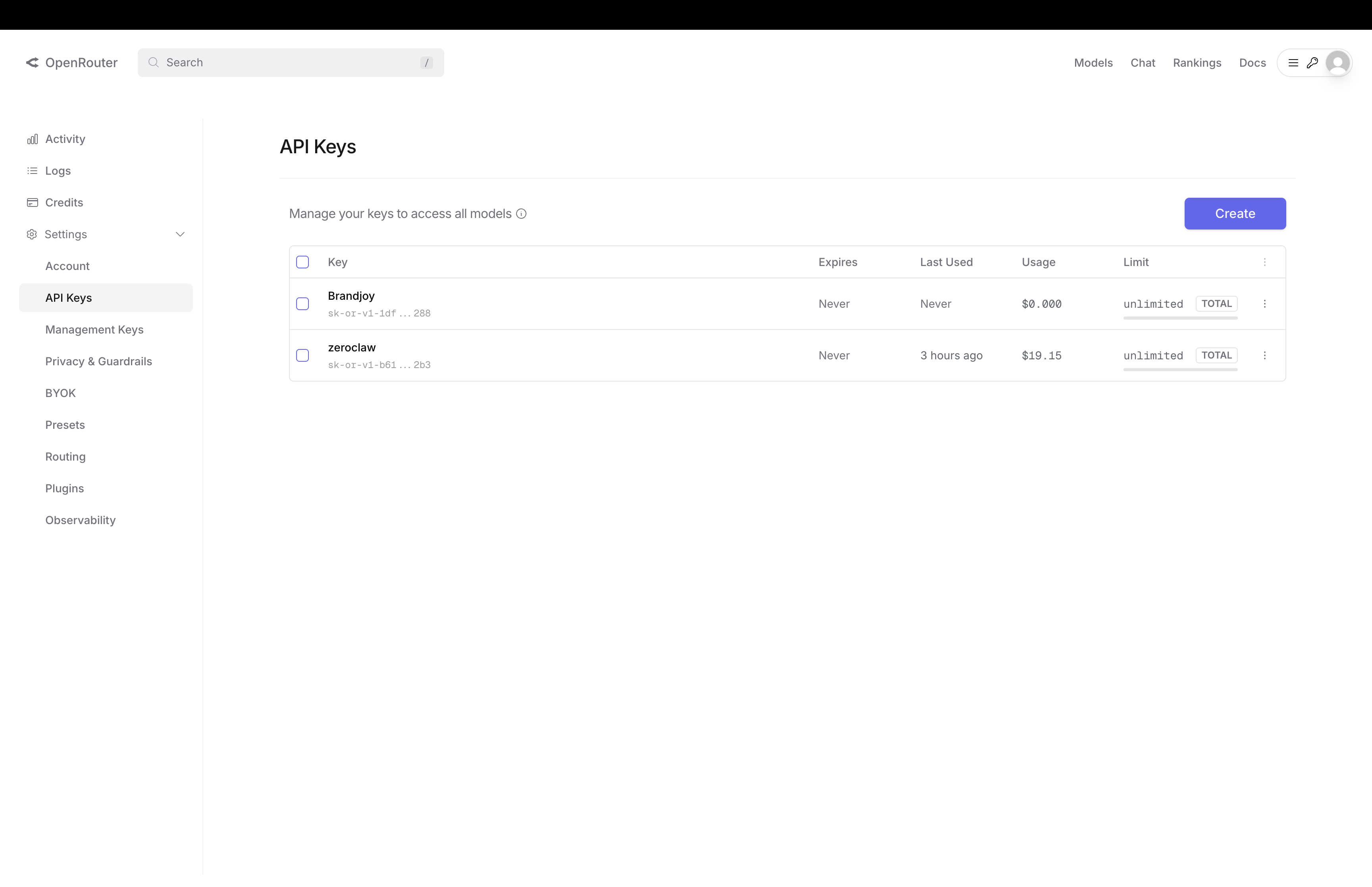
- Go to Settings -> API Keys in OpenRouter.
- Click Create.
- Choose a clear name for the key (for example,
BrandJoy ProdorBrandJoy Staging).
Step 4: Configure key settings and generate the key
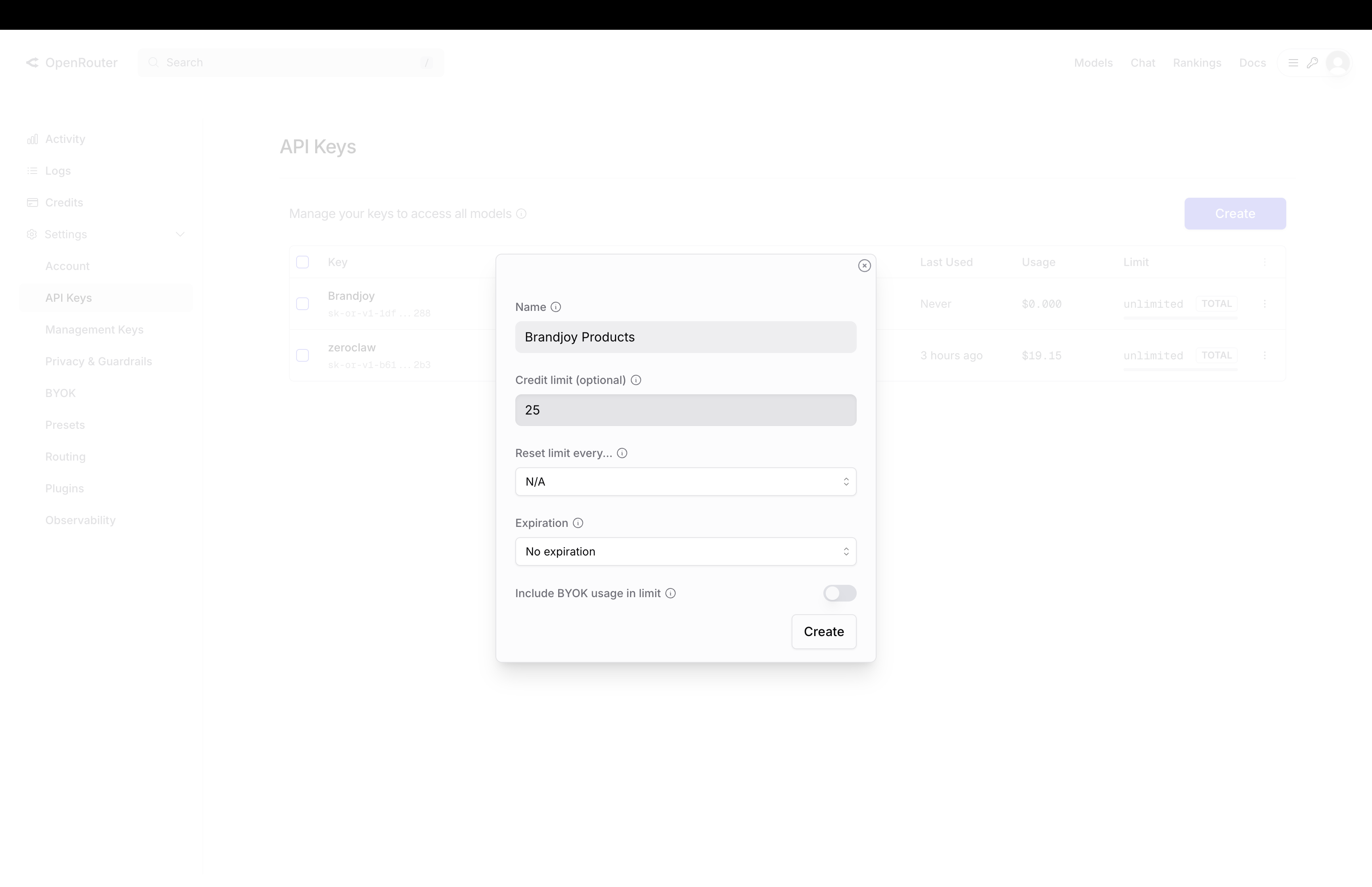
- In the create modal, set:
- Name: use an environment-specific label.
- Credit limit (optional): set guardrails for spend if needed.
- Expiration: set rotation policy if your team requires it.
- Click Create.
- Copy the generated key immediately and store it securely.
sk-or-v1-********************************
Security notes:
- Never commit API keys to source control.
- Rotate keys immediately if they may have been exposed.
- Prefer separate keys for dev/staging/prod.
Step 5 (Optional): Add provider BYOK keys inside OpenRouter to reduce costs further
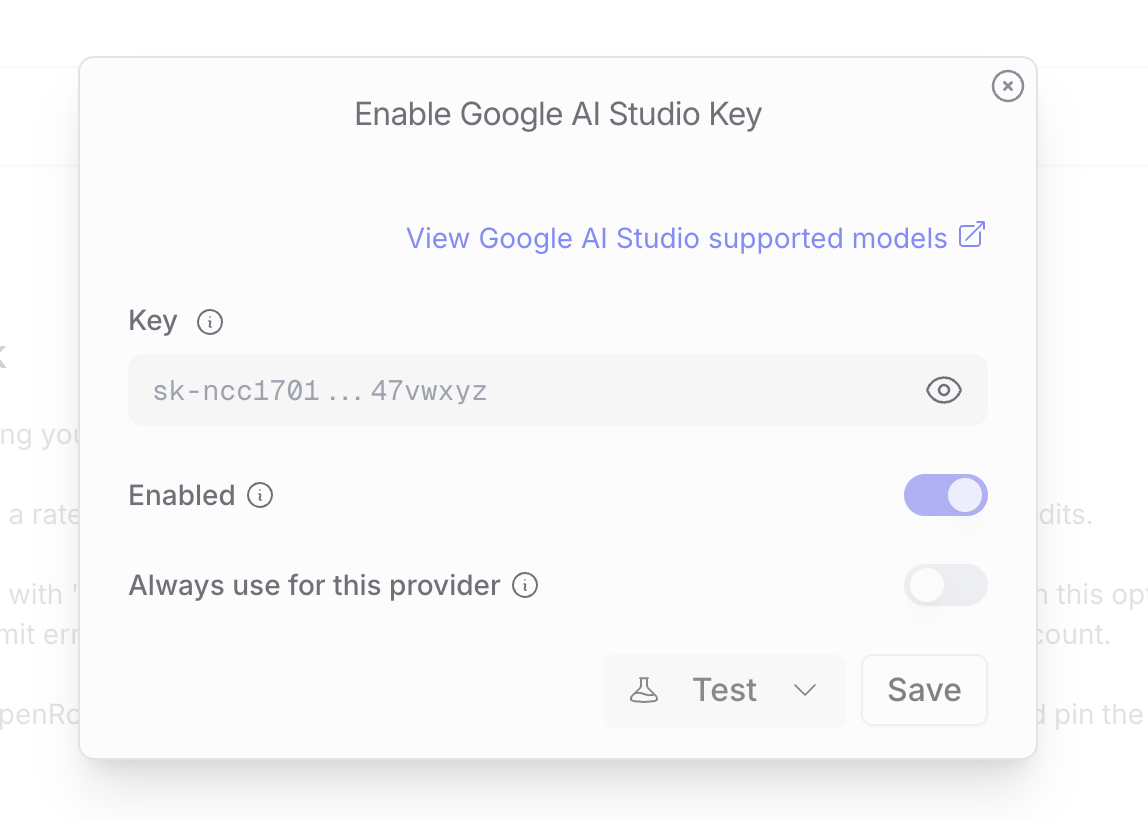
If you already have keys from supported providers (for example Google AI Studio), you can connect them in OpenRouter and route eligible usage through those provider accounts.
- In OpenRouter settings, open the provider/BYOK key area.
- Paste your provider key and enable it.
- Save and test.
- Optionally set routing preferences in OpenRouter so supported models use your provider keys first.
Note: exact savings depend on model, routing setup, and your provider pricing agreements. Monitor spend in both OpenRouter and provider dashboards.
Step 6: Add your OpenRouter key in BrandJoy
- Sign in to BrandJoy and open
Settings -> Integrations. - Paste your OpenRouter key in the OpenRouter field and save.
- Keep your OpenRouter key enabled.
Step 7: Validate with a low-cost test run
- Run one small workflow.
- Confirm it transitions
pending -> running -> completed. - If it fails, verify:
- OpenRouter account has available credits.
- Key is active and correctly pasted in BrandJoy.
- Optional BYOK provider keys are enabled correctly if you are routing through them.